This flow requires a signed-in haau3 account with at least one onboarded patient. If you
haven’t done that yet, complete Account setup first.
1
Confirm the active patient
haau3 supports managing care for multiple individuals. Before generating a share, confirm
that the correct patient tab is selected. The active tab determines whose information is
shared. If the wrong person is selected, switch tabs before continuing.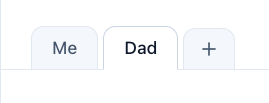
2
Open the Share activity
With the correct patient context confirmed, open the Share activity from the patient
navigation on the top left. The Share activity is where SMART Health Links and QR codes are
generated for the active patient, and where you select which patient data to include.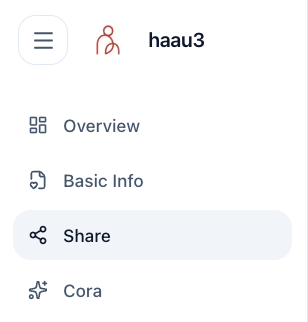
3
Create the share
In the Share activity, review the settings and create the SMART Health Link for the active
patient.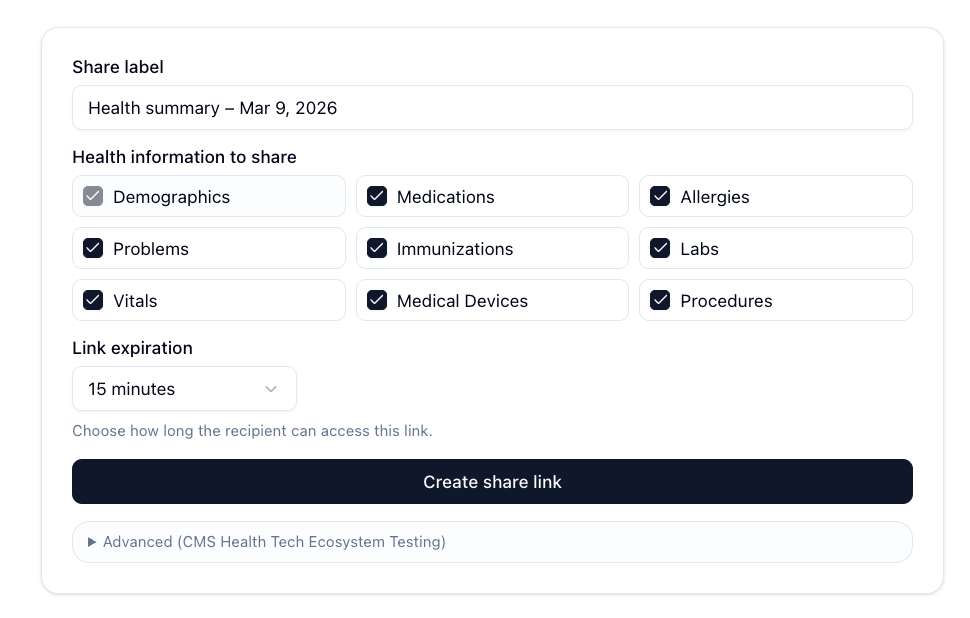
- Optionally update the auto-generated share label so the link is easier to identify later.
- Review the health information to share. These options are pre-selected by default; remove any categories you do not want to include.
- Choose a link expiration time. The default is 15 minutes.
- Click Create share link to generate the QR code and SMART Health Link.
The default sharing mode generates a U-flag SMART Health Link (a direct file
request). An advanced manifest mode is also available for testing. The two retrieval
patterns are described in
Provider & EHR integration.
4
Use or save the generated share
After you click Create share link, haau3 displays a modal with the generated QR code and
a button to copy the secure link.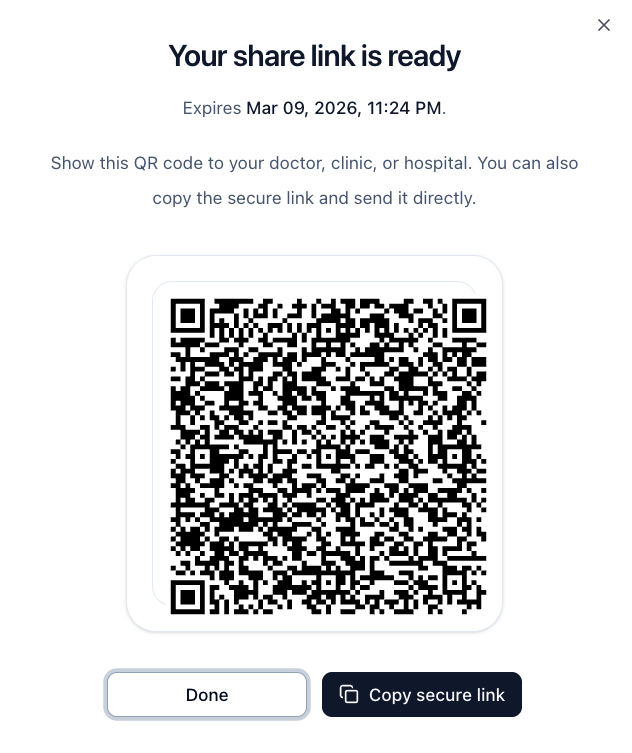
- In person: show the QR code to the receiving system to scan at the point of care. This is the primary workflow.
- Ahead-of-time check-in: copy the SHLink URL and paste it into a provider’s check-in experience before the appointment, where the receiver supports it. See the optional workflow below.
Use or copy the share before closing the modal.
5
Test with a receiver or third-party tool
Validate the generated share in one of three ways:
- Use your own EHR, intake, or check-in receiver workflow.
- Use Flexpa’s SMART Health Links Test Harness.
- Use a public Kill the Clipboard scanner.
SMART Health Links Test Harness
Generate and scan SMART Health Links for testing (sender + receiver).
Kill the Clipboard Scanner
Scan a SMART Health Link as a simulated healthcare organization.
6
Review active share links and access history
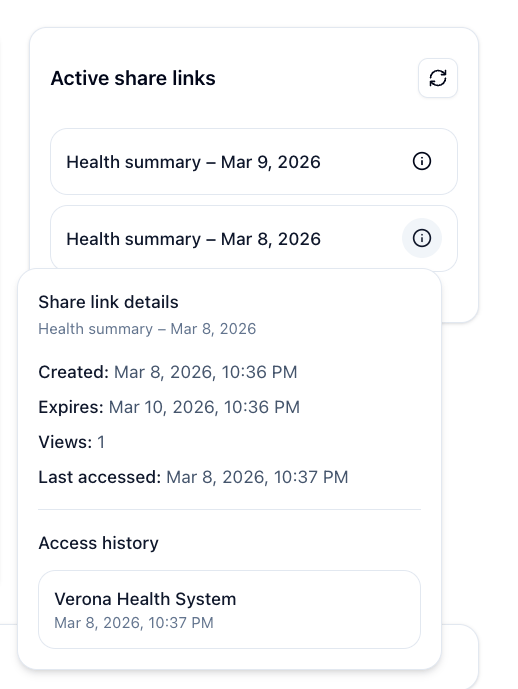
After generating a share, haau3 keeps a list of active share links for the current patient
context, so you can review links that are still available and inspect their activity.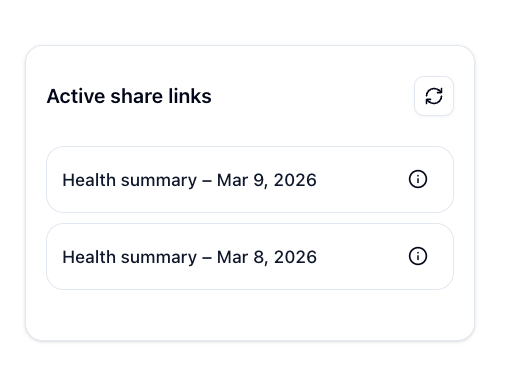
7
Review expired share links and audit history
haau3 also keeps a historical record of previously generated share links. Expired or
inactive shares appear under the Previous and expired share links section for the
current patient context.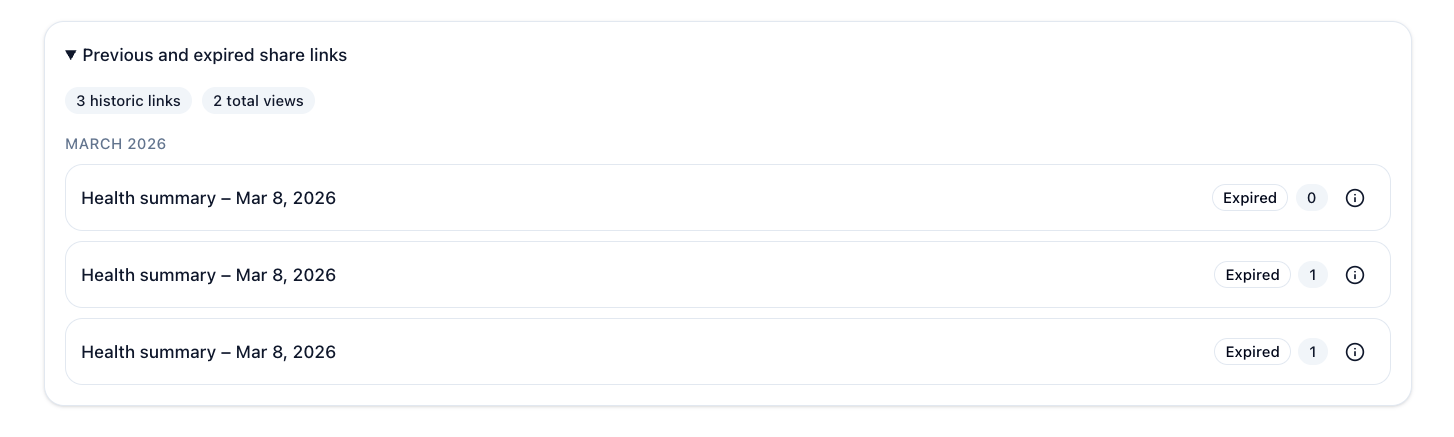
- Expired share status
- View counts
- Access metadata
- Historical share labels and dates
Ahead-of-time check-in (optional)
The KTC specification defines an optional ahead-of-time check-in workflow. A receiver may accept the same SHLink a patient would otherwise present as a QR code in person. The patient generates the share here, copies the SHLink URL, and pastes it into the provider’s check-in experience before the visit. Receivers that support this resolve and process the submitted SHLink immediately, using the same SHLink constraints, retrieval protocol, decryption, validation, persistence, provenance, and security requirements as the in-person flow. Because a link may expire, be single-use, or otherwise become unavailable, receivers should not rely on it remaining resolvable after submission. This workflow is optional and does not change the primary in-person QR workflow. It does not define how the provider’s check-in experience passes request context to the app; the patient independently chooses what to share when creating the SHLink.Related
Account setup
Create an account and onboard a patient (prerequisite for this flow).
Kill the Clipboard
The use case and app/receiving-system responsibilities.